
On this page
- What does a school computer lab in-charge actually need?
- How do you see every student screen and stop misuse?
- How do you install software on every lab PC at once?
- How do you keep lab PCs healthy before each period?
- What should schools tell students and parents about lab monitoring?
- Manual, classroom-control tool or RMM: which approach fits your lab?
- What should a lab setup checklist and exam-day plan include?
- How DVM Techno Can Help
- FAQs
Key takeaways
- A lab in-charge needs five things from software: a view of every screen, USB and printing control, software push to all PCs, a hardware inventory and alerts for slow or offline PCs.
- Classroom-control tools focus on teaching during the period, while RMM tools focus on keeping the PCs themselves running across every lab.
- Tell students and parents in writing what is monitored in the lab, and check with your legal adviser how the DPDP Act, 2023 applies to children's data.
- Prepare practical-exam days a week ahead: software pushed and tested, USB drives blocked, every PC checked and a spare PC ready.
What does a school computer lab in-charge actually need?
Five things: a view of every student screen, control over USB drives and printing, a way to install software on all PCs at once, an up-to-date hardware list and early warning when a PC is slow or offline. Everything else is a bonus.
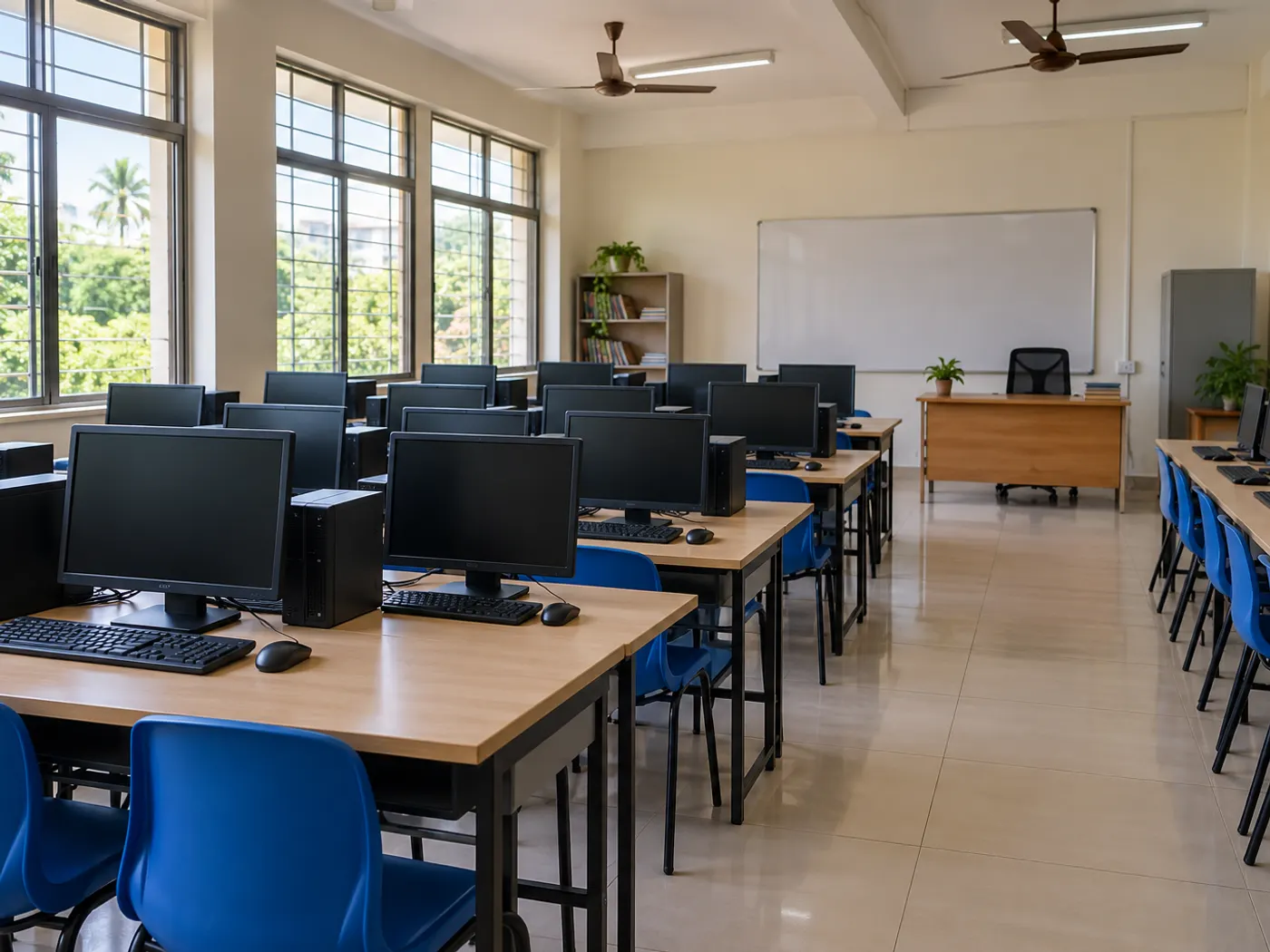
In most Indian schools, CBSE or state board, one computer teacher runs the lab and also looks after the PCs. If ten minutes of a period go into restarting a frozen PC or stopping a game, the class loses that time.
- Visibility: who is doing what on which PC, without walking every row.
- Control: no pen drives, stray print jobs or unapproved software.
- Speed: install or update the same program on every PC in one go.
- Records: the CPU, RAM, disks and installed software of each machine.
- Health: which PC is overloaded or switched off before the period starts.
Your board's affiliation norms may also set expectations for the lab itself, so check the current rules of your own board rather than relying on hearsay.
How do you see every student screen and stop misuse?
Use a live thumbnail wall of every PC in the lab, and pair it with device restrictions for USB drives and printing. The teacher sees at a glance who is off-task, and the riskiest habits are blocked before they start.
Lab misuse is predictable: games copied from pen drives, personal printouts and changed settings. Watching screens and restrictions handle most of it.
- Live screens: one thumbnail per PC, so the teacher can scan the room from the front desk.
- Step in remotely: open one PC in full, take control to show the right menu, or send a chat message.
- Lock a screen: useful when you need everyone's attention for a demonstration.
- Block USB drives: stops viruses and copied games coming in, and stops exam files going out.
- Block printing: keep it off by default and turn it on only for the period that needs it.
- Block DVD drives: on older PCs that still have them.
Screen monitoring works better when students know it is happening. A notice on the lab wall and a line in the lab rules do more to stop misuse than silent watching.
How do you install software on every lab PC at once?
Push the installer or script to all lab PCs from one console, then check which ones succeeded. Installing the same program by hand on every machine is the biggest time sink in lab upkeep.
A new session usually brings software changes, such as a Python setup for senior classes or a typing tutor for juniors. With deployment, the in-charge selects the PCs, pushes an MSI or EXE installer or a script, and sees how many succeeded or failed.
- Test the installer on one PC first.
- Push it to one row, then to the rest of the lab.
- Check the failed list and fix those PCs one by one, using the remote terminal or file transfer where needed.
- Note the installed version in your lab register or inventory.
Keep an automatic hardware and software inventory as well. It lists the CPU, RAM, GPU, disks and installed software of each PC. It answers audit questions quickly and reveals games or unapproved programs on any PC.
How do you keep lab PCs healthy before each period?
Set alert rules for high CPU, high RAM and PCs that go offline, and check the dashboard before each period. Problems show up on screen before a student sits down at a broken machine.
- CPU alert: a PC stuck at high CPU is often running something it shouldn't, or needs a restart.
- RAM alert: a sign the PC is short of memory for the programs you teach.
- Offline alert: a PC that has stopped checking in may be unplugged, switched off or have a network fault.
- Power actions: reboot, shut down or lock PCs remotely, for example shutting the whole lab down at the end of the day.
- Network scanner: see which devices are on the lab network, with hostnames and open ports.
Schools with labs on different floors or blocks gain the most here. Our guide to remote IT support across floors and branches covers the same problem for offices.
Alerts help only if someone looks. Make opening the dashboard the in-charge's first morning task.
What should schools tell students and parents about lab monitoring?
Tell them plainly what is monitored, when and why, and keep monitoring limited to school PCs during lab time. India's data protection law has specific provisions on children.
The Digital Personal Data Protection Act, 2023, published in the Gazette of India on 11 August 2023, defines a child as anyone who has not completed 18 years. Section 9 requires verifiable consent of the parent before processing a child's personal data, and says a Data Fiduciary shall not undertake tracking or behavioural monitoring of children. Section 9(4) allows certain classes of organisations or purposes to be exempted through rules. How this applies to screen monitoring in a school lab depends on the notified rules and your setup, so ask your legal adviser.
- Put a short monitoring notice on the lab wall and in the lab rules.
- Explain it to parents through the school handbook or admission documents.
- Monitor only school-owned PCs, only during lab time, and only for teaching, safety and upkeep.
- Do not open students' personal accounts or files beyond what the class needs.
- Give monitoring access only to the computer teacher and IT staff.
If your campus also uses cameras, our guide to CCTV installation in schools is a useful companion. This section is general information, not legal advice.
Manual, classroom-control tool or RMM: which approach fits your lab?
Manual upkeep works for one small lab, a classroom-control tool helps the teacher during the period, and an RMM tool keeps the PCs themselves running across every lab. Schools with more than one lab often need the IT side more than they expect.
| Need | Manual upkeep | Classroom-control tool | RMM tool (such as DVM Fortress) |
|---|---|---|---|
| See student screens | Walk the rows | Yes, usually the core feature | Yes, live thumbnails of every PC |
| Teaching features (showing the teacher's screen, exam modes) | No | Usually the focus; check each product | Not the focus; check before relying on it |
| Block USB drives and printing | Settings or locks, PC by PC | Varies by product | Yes, USB, DVD and printing per PC |
| Install software on all PCs | One PC at a time | Varies by product | Yes, scripts, MSI and EXE with success and failure counts |
| Hardware and software inventory | Paper or spreadsheet register | Rarely the focus | Yes, CPU, RAM, GPU, disks and installed software |
| CPU, RAM and offline alerts | Found when a student complains | Rarely the focus | Yes, alert rules shown in the console |
| Remote fixes | Visit the PC | Limited | Terminal, file transfer and power actions |
| Suits | One small lab with few changes | Teacher-led classes | Several labs or a school group with an IT person |
Some schools use both. Whatever you choose, ask for a live demo on your own lab PCs first. Our guide to RMM software explains how these tools work in more detail.
What should a lab setup checklist and exam-day plan include?
Set the lab up once with a clear checklist, then follow a short routine for each period and a stricter one for practical exams.
- Number every PC and use the same names in the software.
- Use a student login on each PC; keep the admin password with the in-charge.
- Install the agent on every PC and confirm all show online.
- Save the first hardware inventory as the lab's baseline.
- Set default restrictions: USB drives blocked, printing off unless needed.
- Set CPU, RAM and offline alert rules.
- Give each staff member only the access they need.
- Put up the monitoring notice and lab rules.
For the daily timetable, a two-minute check before each period helps: look for offline PCs and alerts, and turn printing on only if this class needs it. Push the next class's software during the break, not the lesson. Practical exams need extra care, because one frozen PC or pen drive can disrupt a student's exam.
- A week before: push the required software to every PC and test it on two machines.
- Two days before: review alerts, repair weak PCs and keep a spare PC ready.
- On the day: block USB drives on all PCs, enable printing only if the exam needs printouts, and keep the screen wall open.
- After the exam: collect files as the examiner instructs, then reset restrictions to your normal settings.
Follow your board's and the examiner's instructions for practical exams. Software supports the process; it does not replace the rules the board sets.
How DVM Techno Can Help
DVM Techno is a software company based in Gurgaon, Haryana, and we are building DVM Fortress, our remote monitoring and management software for Windows PCs, available now with demos on request. For a school lab, Fortress shows live screens of every PC, offers remote control with chat and voice call, blocks USB, DVD and printing, deploys installers to many PCs, keeps an inventory and raises CPU, RAM and offline alerts in the console. Administrator, Technician, Helpdesk and Viewer roles keep access limited.
If your school also wants admissions, fees and attendance in one place, see our School ERP software. Call or WhatsApp +91-8448523313 to book a demo for your lab.
Frequently Asked Questions
What is computer lab management software for schools?
It is software that lets a lab in-charge watch and manage every PC in a school computer lab from one screen. Typical features include live views of student screens, USB and printing restrictions, software installation on many PCs at once, a hardware and software inventory and alerts when a PC is overloaded or offline. Some tools focus on teaching, others on keeping the PCs running.
Can software block pen drives in a school computer lab?
Yes. Many lab and RMM tools can block USB storage on selected PCs, and DVM Fortress can restrict USB drives, DVD drives and printing per PC. Blocking pen drives stops viruses and copied games coming in and exam files going out. Keep a simple process for the teacher to allow USB for a specific class or task when it is genuinely needed.
Is it legal to monitor student screens in a school lab?
It depends on how you do it. The DPDP Act, 2023 treats anyone under 18 as a child, requires verifiable parental consent for processing a child's personal data and restricts tracking or behavioural monitoring of children, subject to exemptions set by rules. Keep monitoring to school PCs during lab time, inform students and parents in writing, and ask your legal adviser how the law applies.
Do we need a classroom-control tool or an RMM tool?
If your main need is running lessons, such as showing your screen to students, a classroom-control tool fits. If your main pain is upkeep, such as installing software, tracking hardware, blocking USB drives and catching offline or overloaded PCs, an RMM tool fits better. Schools with several labs or one IT person for many PCs often use both together.
Is DVM Fortress available for schools now?
DVM Fortress is available now. DVM Techno gives live demos on request and will help you install and set it up for your organisation. It runs on Windows PCs through a small background agent, and the admin console is a desktop application. Call or WhatsApp +91-8448523313, Monday to Saturday, 9 AM to 7 PM.
Related articles
Run every lab PC from one console
Book a live demo of DVM Fortress and see live screens, USB and printing restrictions and software deployment in a demo for your school.