
On this page
- What does "free" usually mean in video management software?
- Will it work with your cameras? Check ONVIF, RTSP and H.265
- How should you plan recording modes and storage?
- What PC hardware does a Windows VMS need?
- Local or cloud: where does your footage go, and where does the AI run?
- What about users, evidence export, updates and auto-start?
- Checklist: free VMS for Windows before you choose
- How DVM Techno Can Help
- FAQs
Key takeaways
- "Free" usually means a camera limit or locked features, so check exactly what happens when you add one more camera or a licence lapses.
- The software must support ONVIF and RTSP for your cameras, and H.265 if your cameras record in it, or you will be stuck with fewer cameras or larger files.
- Estimate storage from each camera's bitrate, recording hours and retention days, then decide whether the oldest footage is overwritten or recording stops when the disk fills.
- For evidence, check user roles, an audit log, original-quality clip export and that the recorder runs as a Windows service that restarts after a power cut.
What does "free" usually mean in video management software?
In most cases, free video management software (VMS) is a full product with a limit: a cap on cameras, some features switched off, or both. That can be perfectly fine for a shop, clinic or small office with a few cameras. The problem is finding the limit after you have already set everything up.
A VMS records your IP cameras and adds live view, playback search, user accounts and often analytics on top. If you are unsure whether you need a VMS, an NVR box or a DVR, start with our NVR vs DVR vs VMS comparison. Before you install a free one, get clear answers to these questions:
- Camera limit: how many cameras does the free tier record, and what happens when you add one more?
- Locked features: are AI detection, backup, extra users or longer layouts part of the free tier or only paid editions?
- Upgrade path: can you move to a paid licence on the same install, or do you have to reinstall and lose settings?
- Licence lapse: if a licence expires or the licence server cannot be reached, does recording continue?
- Time limits: is it free for good, or a trial that stops working after some days?
Recording should never stop because of a licence problem. Ask this question in writing before you rely on any VMS for evidence.
Will it work with your cameras? Check ONVIF, RTSP and H.265
Check that the software supports ONVIF discovery and RTSP streams, and that it handles H.265 if your cameras use it. These three decide whether your existing cameras connect at all, and how much disk they need.
- ONVIF: a common standard that lets the software find cameras on your network and read their stream addresses, instead of you typing each one by hand.
- RTSP: the stream the software actually records. Most current IP cameras offer it, but check the setting is enabled on the camera.
- Main and sub-streams: good software records the high-quality main stream and uses the lighter sub-stream for multi-camera live view, which saves bandwidth and CPU.
- H.264 and H.265: H.265 usually needs less storage for similar picture quality. If the software only supports H.264, you may have to switch every camera to it.
- Analog cameras: cameras wired to a DVR are not IP cameras. A VMS cannot record them directly unless the DVR offers RTSP streams. Our IP vs analog camera guide explains the difference.
Test with your actual camera models before you commit. Connect one camera of each model, record for a day and play it back.
How should you plan recording modes and storage?
Pick a recording mode for each camera first, then estimate storage from bitrate, hours recorded and the number of days you must keep footage. Guessing disk size is how most sites end up with a week of footage when they wanted a month.
Common recording modes are continuous (24/7), scheduled (for example, only after office hours) and manual or event-based. A gate or cash counter usually needs continuous recording. A store room may only need a night schedule. Check that schedules crossing midnight work correctly in the software you choose.
To estimate storage, use the bitrate set on each camera (shown in its settings in Mbps). One day of continuous recording in gigabytes is roughly the bitrate in Mbps multiplied by 10.8, because there are 86,400 seconds in a day and 8 bits in a byte. Then follow these steps:
- List every camera with its bitrate and recording hours per day.
- Work out gigabytes per day for each camera, scaling down for scheduled cameras that record fewer hours.
- Add all cameras together for the total per day.
- Multiply by the number of days you must keep footage (your retention period).
- Add headroom for the operating system, exports and future cameras.
Finally, check what the software does when the disk fills. It should let you choose between overwriting the oldest footage and stopping recording, and it should warn you before either happens.
What PC hardware does a Windows VMS need?
Recording itself is usually light work. AI analytics, transcoding for browsers and many live tiles are what push the hardware. Size the PC for the heaviest of these you plan to use, not just for recording.
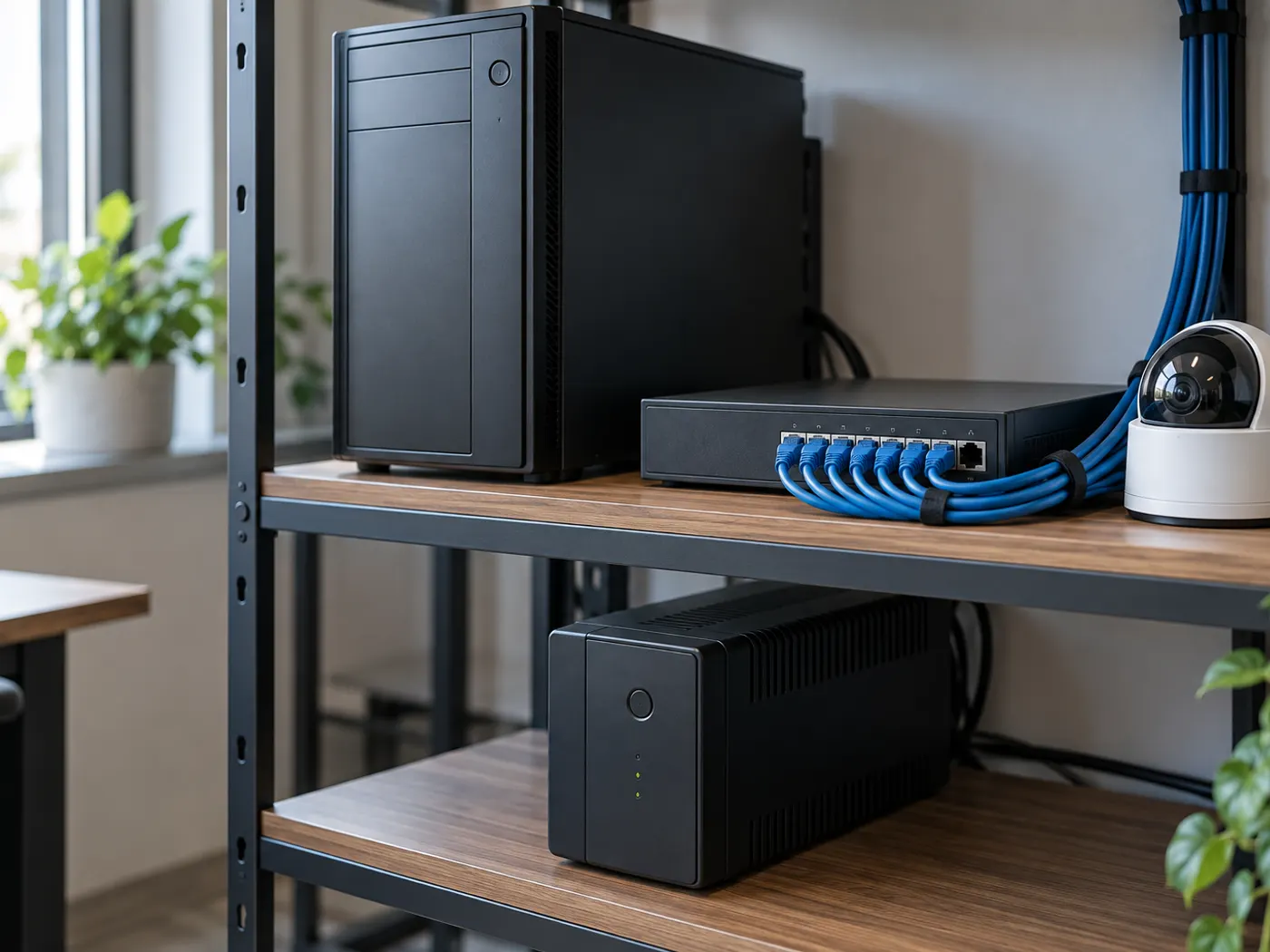
- Dedicated machine: do not run the recorder on a daily-use office PC that gets restarted, slowed down or shared.
- CPU and RAM: more cameras with AI detection need more processing. Ask the vendor how load scales with camera count and AI.
- Storage: keep footage on separate drives from Windows, ideally drives rated for continuous surveillance writes.
- Network: wired gigabit LAN between cameras, switch and PC. Wi-Fi is a weak link for continuous recording.
- Power: a UPS for the PC, switch and camera PoE supply, so short power cuts do not stop recording.
For a warehouse in IMT Manesar or an office in Udyog Vihar with frequent power fluctuation, the UPS and a recorder that survives a hard power cut matter as much as the CPU.
Local or cloud: where does your footage go, and where does the AI run?
With local (on-premise) software, footage stays on disks inside your building. With cloud software, it is uploaded to a provider's servers. Both can work, but the trade-offs are real.
- Privacy: footage of staff, patients or students leaving the building is a bigger decision than it looks. Know who can access it and where it is stored.
- Internet dependency: local recording keeps running when the internet goes down. Cloud recording depends on your upload link.
- Upload bandwidth: every cloud camera uses upstream bandwidth around the clock.
- Backup: local does not mean no backup. Look for optional copies to a NAS or storage you control.
AI analytics follow the same question. Ask whether detection runs on your own PC or sends frames to a server, whether it needs a per-camera add-on, and whether you can turn behaviours on per camera so a busy corridor does not flood you with alerts. Our guides on on-premise vs cloud CCTV storage and AI CCTV analytics for business go deeper.
What about users, evidence export, updates and auto-start?
These are the features you only notice when something goes wrong, so check them before you need them.
- User roles: a guard should see live view, a manager playback and export, and only an admin should change settings. An audit log shows who did what.
- Evidence export: you should be able to mark a start and end time and export one clip in original quality, without re-encoding.
- Fast search: a calendar showing which days hold footage, and event markers on the timeline, save hours during an investigation.
- Windows service: the recorder should run as a Windows service that starts with the machine, not as an app someone has to open after every restart.
- Crash safety: ask how recordings are written, and how much footage a sudden power cut can damage.
- Updates and support: check that updates keep your recordings and settings, and that there is a real support contact.
Checklist: free VMS for Windows before you choose
Use this table while comparing options or testing a free download. Every item should have a clear yes, or a clear answer you can accept.
| Check | What to look for | Why it matters |
|---|---|---|
| Free tier limit | Camera count and locked features stated clearly | Avoids surprises when you add cameras |
| Licence lapse | Recording continues even if the licence expires | Evidence keeps recording |
| Camera support | ONVIF discovery, RTSP, main and sub-streams | Your existing cameras connect |
| Codec | H.264 and H.265 | Less storage with H.265 cameras |
| Recording modes | Continuous, scheduled and manual per camera | Record only what you need |
| Disk-full behaviour | Choice of overwrite oldest or stop, with warnings | No silent loss of footage |
| Where footage lives | Local disks, optional backup to storage you control | Privacy and no internet dependency |
| AI analytics | Runs locally, enabled per camera | Fewer false alerts, no frames uploaded |
| User roles | Separate roles plus an audit log | Controlled access to footage |
| Evidence export | Exact clip in original quality | Clips that hold up when reviewed |
| Auto-start | Runs as a Windows service, restarts after power cuts | Recording resumes without anyone logging in |
| Updates | Upgrade keeps recordings and settings | Safe to stay current |
How DVM Techno Can Help
DVM Techno makes DVM VigiCore, our on-premise video management software for Windows. It runs on Windows 10, Windows 11 or Windows Server as local services, records ONVIF IP cameras over RTSP in H.264 and H.265, and keeps footage in your building. The free download works with up to 4 cameras without a licence, and paid editions are licensed by camera count. Talk to our team on +91-8448523313 to size a server for your site.
Frequently Asked Questions
Is free video management software good enough for a small business?
Often, yes. A shop, clinic or small office with a few IP cameras can run well on a free tier, as long as the camera limit covers your needs and recording does not stop when a licence lapses. Check ONVIF and RTSP support for your cameras, plan storage for your retention period, and run it on a dedicated PC with a UPS.
How do I estimate CCTV storage for a VMS?
Take each camera's bitrate in Mbps from its settings. One day of continuous recording is roughly the bitrate multiplied by 10.8 gigabytes. Scale down for cameras that record only on a schedule, add all cameras together, multiply by the number of days you must keep footage, and add headroom for exports, the operating system and future cameras.
Can a VMS record analog CCTV cameras?
Not directly. A VMS records IP cameras over the network, usually through ONVIF and RTSP. Analog or HD-TVI/CVI cameras wired to a DVR are not IP cameras. You can either replace them with IP cameras or connect through a DVR that offers RTSP streams, if your DVR supports it. Test one stream before planning the whole site.
Should VMS software run as a Windows service?
Yes. A recorder that runs as a Windows service starts with the machine and keeps recording after a restart or power cut, without anyone logging in. Software that runs only as a normal desktop app stops recording until someone opens it again. Check this before installing, especially at sites with frequent power cuts.
Is DVM VigiCore free?
The DVM VigiCore Windows installer is free to download and runs with up to 4 cameras without a licence. A licence unlocks your edition's camera count and features such as the full AI detection suite and off-site backup. Editions are licensed by camera count. It runs on Windows 10, Windows 11 or Windows Server and keeps footage on your own hardware.
Related articles
Try VigiCore on your own Windows PC
Download the free installer for up to 4 cameras, or ask us to size a server for your site.