
On this page
- WiFi slow? What should you do first?
- Is the problem your plan, your WiFi or your device?
- Where should you place your WiFi router?
- Is your WiFi crowded? Bands, channels and too many devices
- Why is WiFi slow on my phone or laptop only?
- How do you increase WiFi range in a house?
- How do you get WiFi on both floors of a house with an RCC roof?
- Quick troubleshooting table, and when it is the line, not the WiFi
- FAQs
Key takeaways
- First find where the slowness is: test on a LAN cable or right next to the router, then in the slow room, then on another device.
- Router placement matters most: high, central, in the open, and away from metal, mirrors and the microwave oven.
- 2.4 GHz reaches farther through walls; 5 GHz is faster but shorter-range, so choose the band per room.
- To extend range, a wired access point or mesh system usually works better than a simple repeater, which cuts throughput.
WiFi slow? What should you do first?
Restart the router, test the speed on a LAN cable or right next to the router, move the router high and central, switch between the 2.4 GHz and 5 GHz bands, pause downloads on other devices, update the router firmware, and if it is still slow next to the router, call your internet provider. Work through this checklist in order:
- Restart the router: unplug it, wait about 30 seconds, plug it back in and wait for the lights to settle.
- Test near the router: run a speed test on a laptop with a LAN cable, or on a phone a metre from the router.
- Move the router: high on a shelf or wall, in the middle of the house, not in a cupboard or behind the TV.
- Switch band: 5 GHz for speed close to the router, 2.4 GHz for range in far rooms.
- Reduce load: pause big downloads, phone backups, game updates and 4K streams on other devices.
- Update firmware from the router’s settings page or app.
- Call your provider if the speed on a cable or next to the router is still well below your plan.
Not sure your plan is big enough for your family? Read our 50 vs 100 vs 200 Mbps speed guide.
Is the problem your plan, your WiFi or your device?
Test in three places: on a cable or next to the router, in the slow room, and on a second device. The pattern tells you whether to call your provider, fix the WiFi or fix the phone or laptop. Pause other devices while you test, because every device shares the same plan.
| What you see | Where the problem is | What to do |
|---|---|---|
| Slow even on a LAN cable or next to the router | The line or plan | Restart the router, then report it to your provider |
| Fast next to the router, slow in far rooms | WiFi range | Move the router, change band, add an access point or mesh |
| One phone or laptop slow, others fine in the same spot | That device | Forget the network, update it, check power saving and drivers |
| All devices slow at the same time, even near the router | Load or the line | Check for big downloads; if none, tell your provider |
Where should you place your WiFi router?
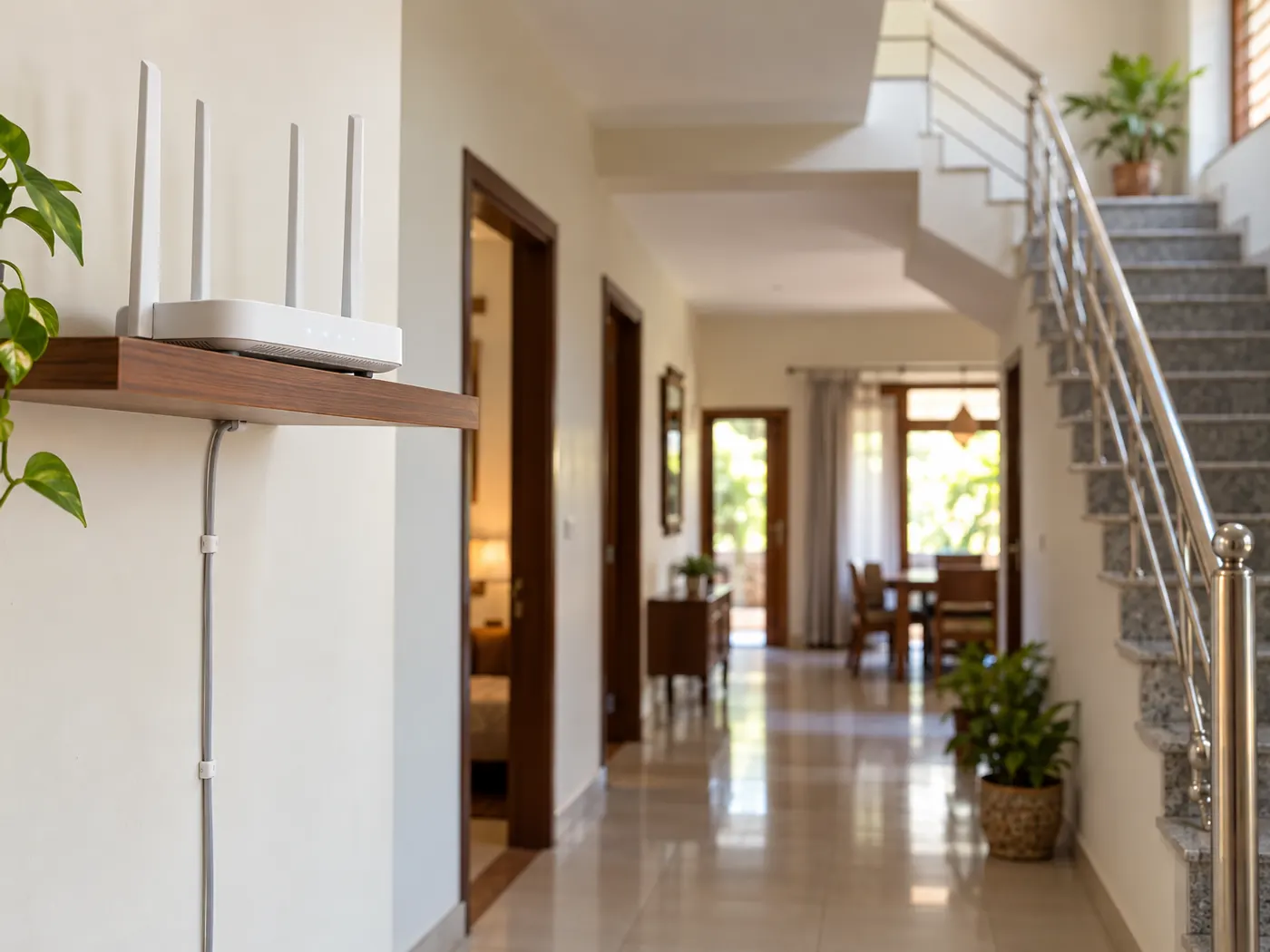
Put the router high, central and in the open, away from metal, mirrors and the microwave oven. Every wall, slab and large object in the way weakens the signal.
- Height: a shelf or wall mount works far better than the floor or the bottom of a TV cabinet.
- Centre of the house: the router is often left where the connection enters, in a front room or corner. A longer LAN cable lets you move it to the middle.
- Walls and roofs: brick walls and RCC concrete slabs absorb a lot of signal. Fewer walls between router and device means better speed.
- Metal and mirrors: keep the router away from steel almirahs, metal doors, large mirrors and the inverter battery rack.
- Microwave ovens: household microwaves work in the 2.4 GHz band, and Wikipedia’s article on 2.4 GHz radio use notes they can cause real difficulties for WiFi. Keep the router out of the kitchen.
- Antennas: keep them upright for one floor; if upstairs is weak, tilt one sideways and test again.
Is your WiFi crowded? Bands, channels and too many devices
Use 2.4 GHz for range and 5 GHz for speed, let the router pick a quiet channel, and stop devices that eat bandwidth in the background. According to Wikipedia’s IEEE 802.11 article, 5 GHz signals are absorbed more readily by walls, so their range is shorter, while the 2.4 GHz band can suffer interference from microwave ovens, cordless phones and Bluetooth devices.
| 2.4 GHz | 5 GHz | |
|---|---|---|
| Range through walls | Longer | Shorter |
| Speed | Lower | Higher |
| Interference | More crowded band | Less crowded |
| Use it for | Far rooms, upstairs, smart plugs and many WiFi cameras | Smart TV, laptop and phones near the router |
If your router shows one network name for both bands, its settings page usually lets you give each band its own name so you can choose. In a crowded apartment block, neighbours’ routers on the same channel slow everyone. Apple’s recommended router settings suggest leaving the channel on Auto and using a 20 MHz channel width on 2.4 GHz; on 2.4 GHz, channels 1, 6 and 11 are the usual non-overlapping set if you pick one by hand.
- Too many devices: every phone, TV and laptop shares one plan. Check the router’s device list and remove unknown ones.
- Background downloads: phone photo backups, game and system updates, and cloud drive syncing can fill the line without you noticing.
- CCTV: cameras uploading to the cloud or viewed remotely use upload bandwidth. Watch them on the sub-stream, as explained in our CCTV-to-mobile guide.
- Security: use WPA2 or WPA3 with a strong WiFi password so neighbours are not sharing your connection.
Why is WiFi slow on my phone or laptop only?
If one device is slow and others are fine in the same spot, fix that device: restart it, forget and rejoin the network, update it, and check power saving and drivers.
- Android: turn WiFi and airplane mode off and on, restart the phone, then forget the network and join again. Google’s Pixel help also lists a “Reset Bluetooth & Wi-Fi” option under System, Reset options; names differ by phone maker. See also Google’s Android connection guide.
- iPhone: check WiFi is on and airplane mode is off, remove VPN or security apps to test, move closer and try 5 GHz. Apple Support suggests Reset Network Settings only as a last resort, because it deletes saved WiFi passwords.
- Windows laptop: run the network troubleshooter, forget and reconnect, try 5 GHz, update or reinstall the WiFi adapter driver in Device Manager, and under Power Management untick the option that lets Windows turn the adapter off to save power. Microsoft Support lists network reset as the last step.
How do you increase WiFi range in a house?
First move the router; if far rooms are still weak, add a wired access point, a mesh system, a repeater or a powerline kit. A cable to the second unit usually gives the fastest, most stable link. Wikipedia’s article on wireless repeaters notes that because every transmission is sent twice, a repeater reduces throughput by at least half.
| Option | How it works | Pros | Cons |
|---|---|---|---|
| Access point with LAN cable | A second WiFi unit wired to the router | Full speed in the far room, very stable | Needs a cable run through walls or the stairwell |
| Mesh WiFi | Two or more units forming one network | One name across the house, easy roaming, can use a cable between units | Costs more; wireless links lose speed through slabs |
| Repeater / extender | Receives WiFi and re-broadcasts it | Cheap, plugs into a socket, no cable | Throughput drops; often a separate network name |
| Powerline adapter | Carries data over home electrical wiring | No new cable through walls | Speed depends on wiring; avoid extension boards |
Place a repeater or mesh unit halfway between the router and the weak room, where the signal is still good, not inside the dead zone.
How do you get WiFi on both floors of a house with an RCC roof?
Place the router high near the stairwell, and if the upper floor is still weak, run a LAN cable up the stairs to a second access point or a wired mesh unit. In village houses with thick brick walls and an RCC slab, the staircase opening is often the easiest path for the signal.
- Mount the router on the wall at the top of the ground floor, close to the stairwell.
- Use 2.4 GHz for upstairs rooms and the roof; keep 5 GHz for the TV and laptop downstairs.
- For a separate floor or a rented portion, a wired access point upstairs gives each floor its own strong signal.
- Keep the router and broadband equipment on an inverter or UPS so the connection survives power cuts.
Quick troubleshooting table, and when it is the line, not the WiFi
If the speed is low even on a cable or right next to the router after a restart, the problem is the line, not your WiFi, so call your provider. Use this table first:
| Symptom | Likely cause | Fix |
|---|---|---|
| Good signal bars but slow pages | Load from other devices, or the line | Pause downloads; test on a cable; call provider if still slow |
| Weak in one room only | Walls, slab or distance | Move router, use 2.4 GHz, add access point or mesh |
| Drops every few minutes on a laptop | Adapter power saving or old driver | Turn off adapter power saving, update driver |
| Slow at night on all devices | Crowded channel, or busy line | Set channel to Auto; if a cable test is also slow, tell your provider |
| Connected, no internet | Line down or router stuck | Restart router; if lights show a fault, call provider |
DVM Techno provides wireless broadband in 37 villages around Kasni, across Salhawas block and Jhajjar tehsil, with plans of 30, 50, 100 and 200 Mbps and unlimited data with no FUP. If your connection stops working, our local support team near Kasni is available by phone and WhatsApp and can visit your home if something needs fixing. See WiFi broadband near Kasni, Jhajjar, or call or WhatsApp +91-8448523313, Mon–Sat, 9 AM–7 PM.
Frequently Asked Questions
Wifi slow chale to kya kare: what should I do when my WiFi is slow?
Restart the router and wait for its lights to settle. Then test the speed on a LAN cable or right next to the router. If it is fast there, the problem is range: move the router higher and more central, or switch band. If it is slow even there, pause other downloads and call your internet provider with the test results.
Why is WiFi slow on my phone when other devices are fine?
The problem is likely the phone. Turn WiFi and airplane mode off and on, restart the phone, then forget the network and join again. Turn off battery saver and data saver while testing and install system updates. On Android or iPhone, resetting network settings is a last resort because it removes saved WiFi passwords.
Why is WiFi slow in my laptop?
On a Windows laptop, run the network troubleshooter, forget and reconnect to the network, and try the 5 GHz band if you are near the router. Update or reinstall the WiFi adapter driver in Device Manager and turn off the option that lets Windows switch the adapter off to save power. Use network reset only as the last step.
How can I increase the WiFi range of my router without buying anything?
Move the router high and to the centre of the house, out of cupboards and away from metal, mirrors and the microwave oven. Use the 2.4 GHz band for far rooms, set the channel to Auto, keep the antennas upright and update the firmware. A longer LAN cable to move the router is often the simplest real fix.
Is mesh WiFi better than a WiFi repeater?
Usually, yes. A simple repeater sends every packet twice, so throughput drops by at least half, and it often creates a second network name. A mesh system gives one network across the house and switches you between units as you move. Either works faster when the second unit is connected to the router with a LAN cable.
Does 5 GHz WiFi go through walls?
It does, but less well than 2.4 GHz. Signals at 5 GHz are absorbed more readily by walls and concrete, so range is shorter, though speed close to the router is higher. Use 5 GHz for the TV, laptop and phones in the same room or next room, and 2.4 GHz for upstairs rooms and far corners.
When should I call my internet provider about slow WiFi?
Call when the speed is still low on a LAN cable or right next to the router after a restart, when the router shows a fault light, or when there is no internet on any device. Note your speed test results and the times it was slow. Customers of DVM Techno broadband near Kasni can call or WhatsApp the local support team.
Related articles
WiFi problems near Kasni?
Our local support team near Kasni is available by phone and WhatsApp, Mon–Sat, 9 AM–7 PM, and can visit your home if something needs fixing.